

1 October 2026
How to Edit PSD Files for Free with Photopea (No Photoshop Needed)
Open a PSD mockup, put your design in its smart object and export a finished picture, all free in your browser. Step by step.
 Save
SavePhotoshop costs a monthly subscription, but you don't need it to use a PSD mockup. Photopea is a free editor that runs in your browser, opens PSD files with their layers and smart objects, and exports a finished image in a few clicks.
This guide takes you from opening the file to downloading the finished picture. The example is a mug mockup, but the steps are the same for any mockup with a smart object.
What is Photopea?
Photopea is a free online image editor. It looks and works much like Photoshop: layers, smart objects, masks, text and the same menus. There is nothing to install and no account to make. Open photopea.com, open your file and start.
It is free because it shows ads at the side. That's the only catch.
What you need
- A PSD mockup with a smart object. That's the layer your design goes into. A good mockup already bends the design round the product and adds the light and shadows on top, so you only swap the picture.
- Your design as a PNG (with a transparent background) or a JPG, in RGB colour.
- A computer. Photopea works on a phone too, but a mouse and a big screen make it much easier.
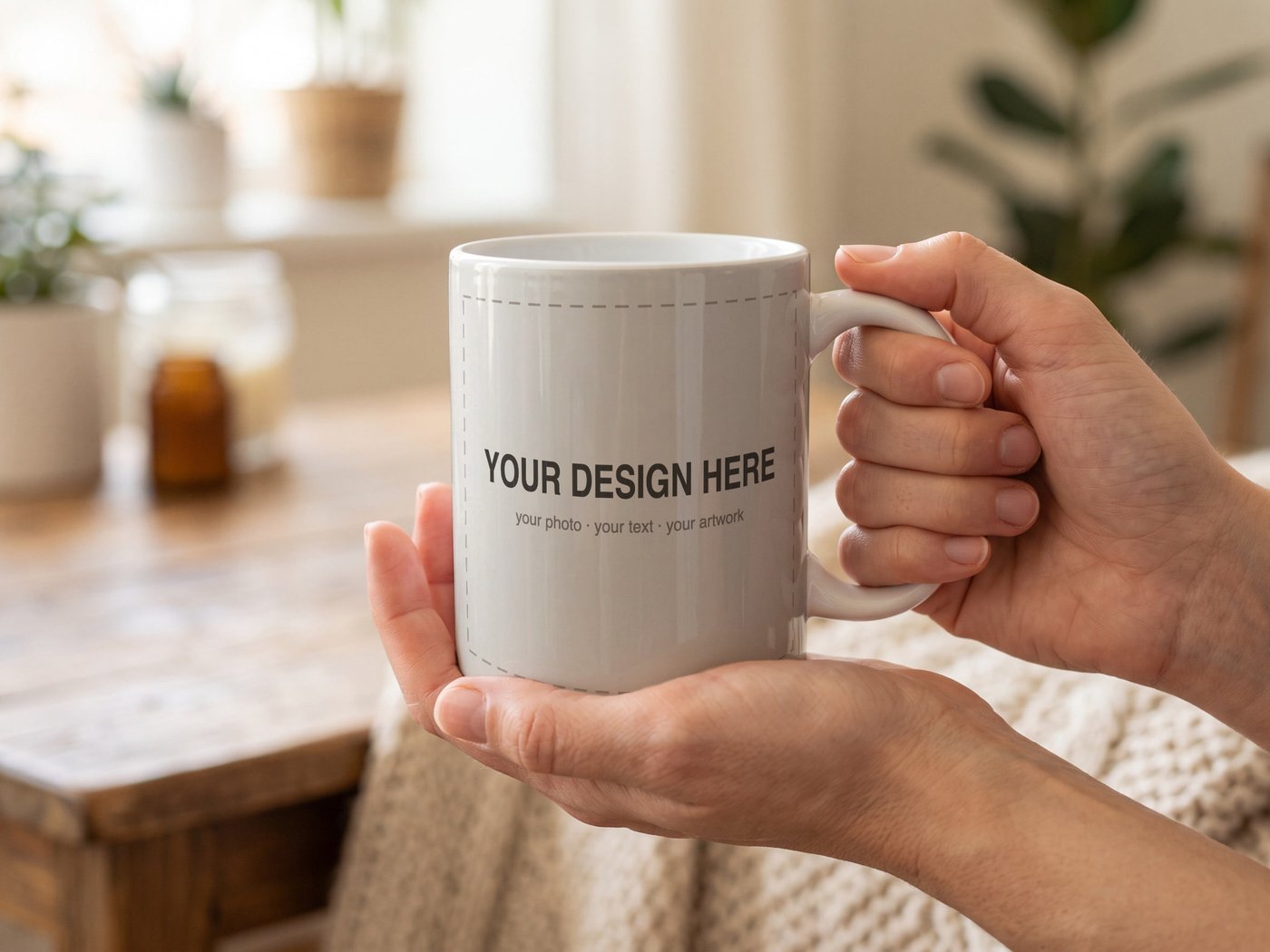
Don't have a mockup yet? Every mug mockup in the shop has a ready smart object, the curve of the mug already set up, and a step-by-step PDF guide in the download.
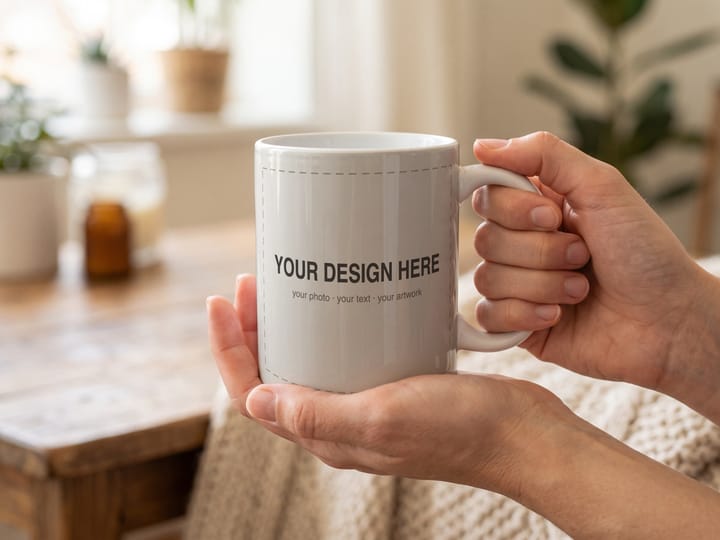
White Mug Mockup PSD, Hands Holding 11 oz Mug, Smart Object
Layered Photoshop mockup of a white 11 oz mug held in two hands, with a smart object layer.
€5.90≈ $6.60
See it in the shopStep 1: Open the PSD in Photopea
- Go to photopea.com.
- Choose File › Open, or simply drag the .psd file onto the page.
- Wait until the Layers panel on the right shows the layers.
Large mockups can take a few seconds to open. That's normal.
Step 2: Open the smart object
In the Layers panel, find the smart object. It is the layer whose small thumbnail picture has a little page icon in its corner. It is usually named something like YOUR DESIGN, Your artwork or Replace me.
- Double-click the thumbnail, not the name. Double-clicking the name only renames the layer.
- A new tab opens with a name ending in .psb. This is the inside of the smart object: the flat area your design fills.
Step 3: Place your design
- Choose File › Open & Place…, or drag your design file onto the canvas.
- Press Ctrl + T (Cmd + T on a Mac) to resize it. Drag a corner to make it bigger or smaller, and drag inside the box to move it. Press Enter when it sits right.
- To cover the whole print area, stretch it until it reaches all four edges.
- Below your design is the placeholder that was there before. Click its eye to hide it, or the placeholder shows through the empty parts of your design.
The size of this tab is the size your design should be. Check it under Image › Image Size… so the result stays sharp.
Step 4: Save and see it on the product
- Choose File › Save (Ctrl/Cmd + S). This saves the smart object, not the whole mockup.
- Go back to the mockup's tab. Your design is now on the product, bent to its shape with the light and shadows on top.
Not quite right? Double-click the thumbnail again, move things, save again. You can repeat this as often as you like, and swap in a new design the same way for every product you sell.

Step 5: Export the finished image
- Choose File › Export as.
- Pick JPG for shop listings, Etsy, Instagram and Pinterest (a quality around 85–90% keeps the file small and still sharp), or PNG if the mockup has a transparent background.
- Click Save. The picture downloads to your computer.
Keep the PSD too: next time you only swap the design and export again.
Tips for smooth editing in Photopea
- Save the smart object often. Photopea runs in the browser and can freeze on very large files.
- Close other tabs if it gets slow; it uses your computer's memory.
- Fonts: Photopea uses the fonts on your computer. If one is missing it picks a similar one, so check any text layers.
- Colours: use RGB designs. CMYK files can look dull on screen.
- A design that goes all the way round is cut off at the sides of a mug, the way the real mug hides it. Keep the important part in the middle.
Ready-made mug mockups for your designs
Every mockup in the shop is a layered PSD with a smart object that works in Photopea and in Photoshop, exactly as shown above. Each comes with a short PDF guide, so you are never stuck. One file, one payment, no subscription.
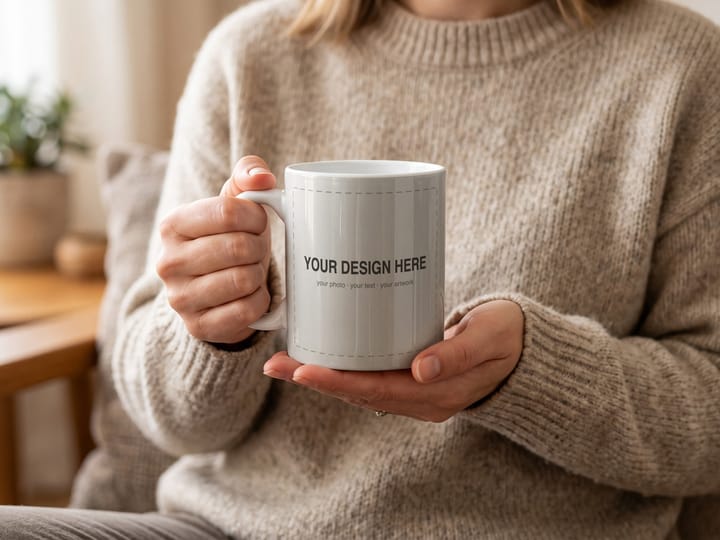
White Mug Mockup PSD, Woman Holding Mug in Knit Jumper, Autumn Scene
Layered Photoshop mockup with a smart object for your mug design
€5.90≈ $6.60
See it in the shop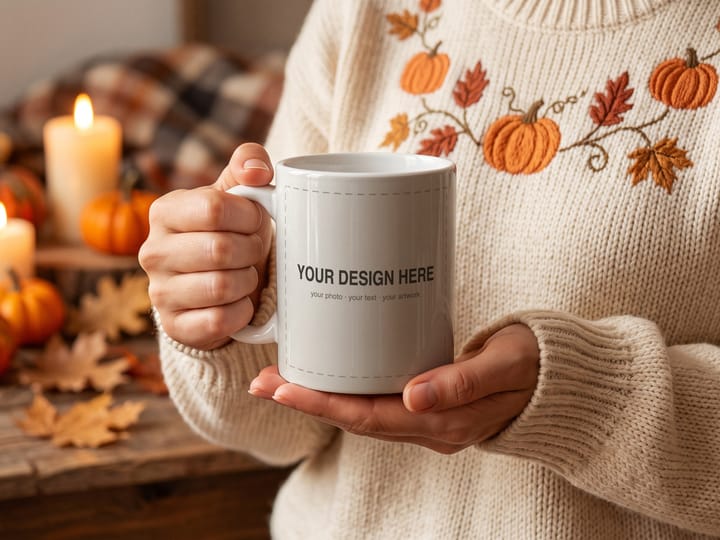
Autumn Mug Mockup PSD, Hands Holding White Mug, Halloween Scene
Smart object PSD mockup of an 11oz white mug in a candlelit autumn setting
€5.90≈ $6.60
See it in the shop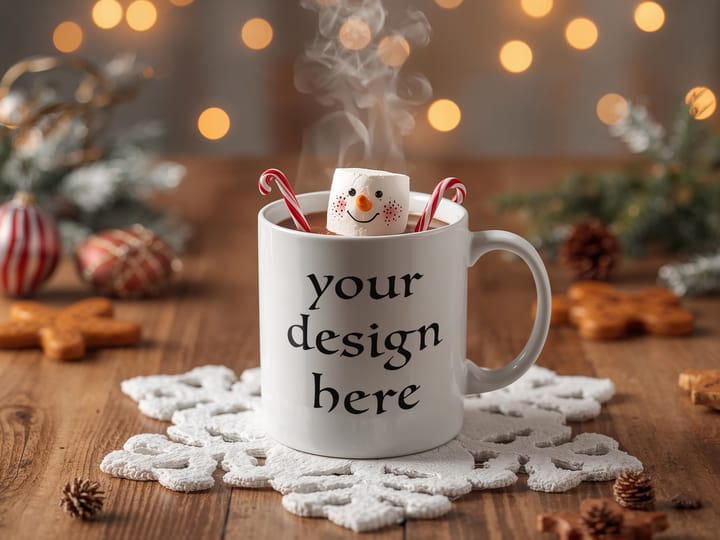
Christmas Mug Mockup PSD, White 11oz Mug with Smart Object
Layered PSD mockup of a white mug in a cosy Christmas scene, edit via smart object
€4.90≈ $5.48
See it in the shopGet new articles and designs by email
New calendars, art and mockups, and the odd offer — about once a month.
Unsubscribe any time. See the privacy policy.